Open a support ticket with TAC from a Security Cloud Control tenant
Enable customers using a licensed Security Cloud Control tenant to create and submit a Cisco TAC support case through the Support Case Manager in order to receive technical assistance.
This section explains how a customer using a licensed Security Cloud Control tenant can open a support ticket with Cisco's Technical Assistance Center (TAC).
Follow these steps to open a support ticket with TAC:
Procedure
Step 1 | Log in to Security Cloud Control. | ||
Step 2 | Next to your tenant name, click the help button and select Contact Support. 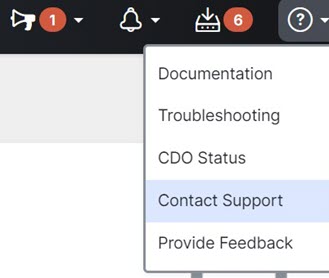
| ||
Step 3 | Click Support Case Manager. | ||
Step 4 | Click the blue Open New Case button. | ||
Step 5 | Click Open Case. | ||
Step 6 | Select Products and Services and then click Open Case. | ||
Step 7 | Choose a Request Type. | ||
Step 8 | Expand Find Product by Service Agreement row. | ||
Step 9 | Fill in all the fields. Many of the fields are obvious. This is some additional information:
| ||
Step 10 | Click Next. | ||
Step 11 | In the Describe Problem screen, scroll down to Manually select a Technology, click it, and type Security Cloud Control in the search field. | ||
Step 12 | Select the category that best matches your request, and click Select. 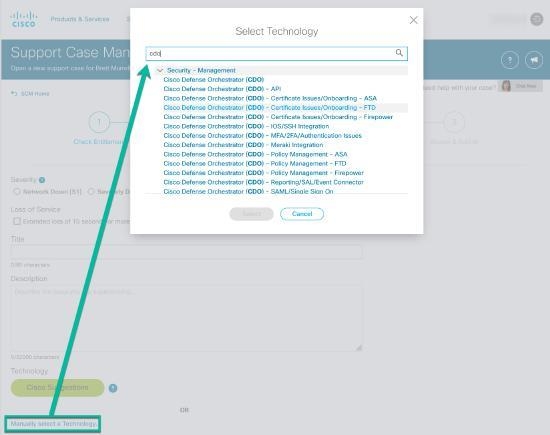
| ||
Step 13 | Complete the remainder of the service request and click Submit. |
A Cisco TAC support case is created and submitted through Support Case Manager. You should see confirmation that the request was submitted and, if applicable, receive a case number for tracking and further communication.